

A full desktop tower can take up valuable room on a small desk, especially when the same space is used for work, study, and household tasks. Mini PCs place the main computer parts inside a much smaller case that can sit beside a monitor or mount behind one. The best choice depends on the operating system, monitor setup, ports, upgrade options, and type of work that must be completed each day.
Apple Mac Mini With M4: Best Overall for Mac Users
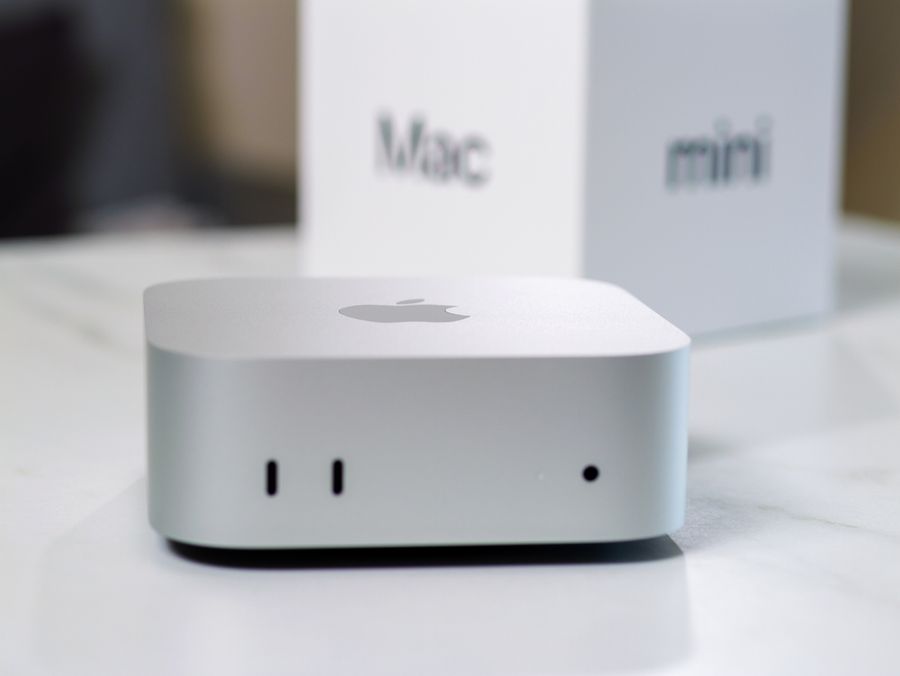
The Apple Mac mini with M4 measures five inches wide, five inches deep, and two inches tall. It weighs 1.5 pounds, making it one of the smallest systems in this group. Its compact square design can sit beneath a monitor stand, beside a laptop dock, or on a narrow shelf without taking over the main work surface.
The standard M4 chip has a 10-core CPU, 10-core GPU, and 16-core Neural Engine. Base configurations include 16GB of unified memory, while storage choices begin at 256GB. The M4 version supports as many as three displays, including combinations of high-resolution monitors connected through Thunderbolt and HDMI.
Two USB-C ports and a headphone jack sit on the front for easier access. The rear provides three Thunderbolt 4 ports, HDMI, Ethernet, and the power connection. This model is a strong fit for writing, web work, video calls, photo management, and creative tasks within macOS. However, buyers should choose memory and storage carefully because the internal parts are not designed for routine user upgrades.
ASUS NUC 14 Pro: Best for Flexible Windows Setups
The ASUS NUC 14 Pro is a practical choice for users who want Windows and room to adjust the hardware. The shorter case measures about 4.6 inches wide, 4.4 inches deep, and 1.5 inches high. A taller version increases the height to about 2.1 inches and provides room for additional storage options.
Processor choices include Intel Core 3 and several Intel Core Ultra 5 and Ultra 7 chips. The system uses two DDR5 memory slots, with supported configurations reaching 96GB on the main product page. Storage support varies by chassis, but options can include two M.2 solid-state drives and a 2.5-inch SATA drive in the taller version.
The port selection is especially useful for a workstation with several screens or accessories. The rear includes two Thunderbolt 4 ports, two HDMI connections, Ethernet, USB-A, and power. More USB ports are placed on the front. A VESA bracket is included, allowing the computer to be attached behind a compatible monitor. Buyers should check whether they are purchasing a complete computer or a barebones kit, since some versions do not include memory, storage, or an operating system.
Lenovo ThinkCentre Neo 50q Gen 5: Best for a Business-Style Home Office
The Lenovo ThinkCentre Neo 50q Gen 5 uses a narrow one-liter case that measures 7.05 inches high, 1.44 inches wide, and 7.20 inches deep. It can be placed upright to save desk width or positioned flat beneath a monitor. Starting weight is 2.45 pounds, so it remains easy to move when a workstation must be rearranged.
Configurations support up to an Intel Core 7 240H processor, 64GB of DDR5 memory, and two M.2 solid-state drives with up to 2TB of listed storage. Support for RAID 0 and RAID 1 may appeal to users who want either faster storage performance or protection against the failure of one drive. The system can also support as many as three independent monitors.
The front provides USB-A, USB-C, and a combined headphone and microphone connection. The rear includes four more USB-A ports, HDMI 2.1, DisplayPort 1.4, Ethernet, and a configurable punch-out port. Security features include a discrete Trusted Platform Module, a Kensington lock slot, Smart USB Protection, and Secure Wipe. These features make the Neo 50q well suited to remote workers who handle business documents or keep a company computer in a shared part of the home.
HP Pro Mini 400 G9: Best for Ports and Office Accessories
The HP Pro Mini 400 G9 is built around office work and offers a broad selection of connections for displays, storage devices, headsets, and other accessories. The configuration pairs an Intel Core i5-12500T processor with 16GB of DDR4 memory and a 512GB PCIe solid-state drive. The system has two memory slots, an M.2 storage slot, and a separate M.2 slot for wireless hardware.
The front includes two USB-A ports, one fast USB-C port, and a combined headphone and microphone jack. At the rear are additional USB-A ports, Ethernet, two DisplayPort connections, and HDMI 2.1. This arrangement allows many common office accessories to be connected without placing a large dock on the desk.
Some versions also support configurable Flex Ports. Depending on the configuration, these may add another display connection, USB-C, a serial port, or other specialized connections. That flexibility can be useful for a home business that relies on older equipment or several monitors.
Dell OptiPlex 7010 Micro: Best for Simple Office Work
The Dell OptiPlex 7010 Micro has a slim case measuring 7.17 inches high, 1.42 inches wide, and 7.01 inches deep. Its starting weight is about 2.41 pounds. The thin body can stand vertically beside a monitor, lie flat beneath a raised screen, or be attached through a compatible mounting system.
The standard connection layout includes two USB-A ports and an audio jack on the front. The rear supplies four more USB-A ports, Ethernet, DisplayPort 1.4a, HDMI, and the power connection. An optional video port can add HDMI, DisplayPort, VGA, or USB-C with DisplayPort support, depending on the configuration.
Storage expansion includes an M.2 slot for a solid-state drive and a SATA connection for a 2.5-inch drive. A separate M.2 slot is used for Wi-Fi and Bluetooth. This model is a sensible match for email, spreadsheets, browser-based services, bookkeeping, and video meetings.
How Much Memory and Storage Does a Home Office Need?
Memory affects how smoothly a computer handles several open programs. A basic system with 16GB is suitable for common office work, including email, documents, web research, video meetings, and light photo editing. Users who keep many large browser tabs open or work with demanding creative programs may benefit from 24GB, 32GB, or more.
Storage needs depend on where files are kept. A 256GB drive may be enough when most documents, photos, and work files are stored online. A 512GB drive provides more room for software and local files, while 1TB or more is useful for large media collections. Upgradeable Windows mini PCs make it easier to add storage later, while Mac mini buyers should select enough capacity when ordering.
External drives can add space, but they also add cables and use a port. In a very compact workstation, internal storage may keep the area cleaner. Cloud storage can reduce local space needs, but important files should still be protected through a separate backup plan.
Check the Monitor and Port Requirements
A mini PC does not usually include a display, keyboard, or mouse. Before buying, count the monitors and note which connections they use. HDMI and DisplayPort are common on standard office monitors, while Thunderbolt and USB-C can carry video on compatible displays. An adapter may be required when the computer and monitor do not share the same connection.
Front-facing ports are helpful for flash drives, headsets, charging cables, and other devices that are frequently removed. Rear ports are better for monitors, Ethernet, and accessories that stay connected. A model with the wrong port mix may require a hub, which adds cost and clutter to a workstation that was meant to stay simple.
Plan for Placement, Cooling, and Upgrades
A mini PC needs less room than a tower, but it still requires airflow. Avoid pressing the case tightly against a wall or covering its vents with papers, fabric, or other equipment. Mounting the computer behind a monitor can clear the desk, but the mounting position should leave room to reach the power button and commonly used ports.
Noise can matter in a small room because the computer may sit close to the user. Light office work usually places less demand on the cooling system than long video exports or other heavy tasks. Keeping the vents clear and selecting a processor suited to the actual workload can help the system remain more comfortable to use.
Building a Better Workstation in Less Space
The Apple Mac mini with M4 is the strongest overall option for users who prefer macOS, want support for several displays, and do not need internal upgrades. The ASUS NUC 14 Pro offers the widest range of hardware choices, making it a better fit for users who want to select or replace their own memory and storage.
The Lenovo ThinkCentre Neo 50q Gen 5 provides business security and strong expansion within a narrow case. The HP Pro Mini 400 G9 stands out for its office-friendly port selection, while the Dell OptiPlex 7010 Micro covers routine work with a simple, slim design. The best mini PC is the one that supports the required programs, monitors, and accessories without replacing desk clutter with a pile of adapters and external drives.